 By Sky Bloom IT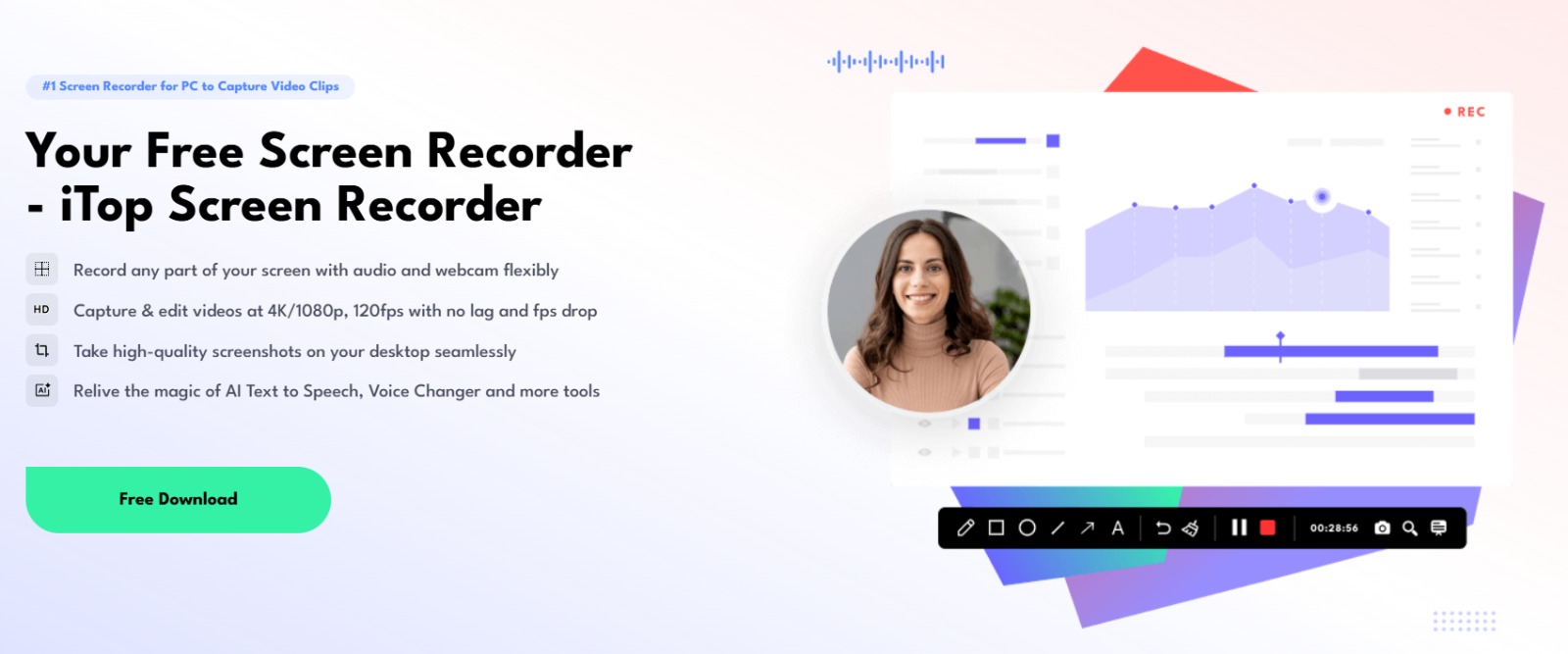
In software development, a good screen recording can save hours. A short clip can show a UI glitch, a broken build step, a weird permission prompt, or a performance spike, without a long back-and-forth in chat.
Windows recording sounds simple until real work starts. You may need to capture only one window, record system audio plus a mic, keep gameplay-level frame rates, or grab a crisp scrolling screenshot of a long bug report.
That’s why many teams keep a dedicated screen capture software installed. iTop Screen Recorder is built for that everyday workflow, with flexible capture modes, high frame-rate recording, live annotations, and built-in editing.
What is iTop Screen Recorder?
iTop Screen Recorder is a screen recorder for Windows designed to capture any part of your screen with audio and webcam options.
It targets both personal and business recording needs, with four modes that cover full screen, a selected area, a window, and device recording.
Feature set that covers real tasks
Recording controls
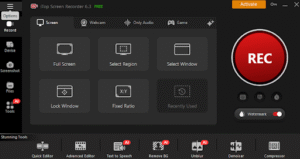
You can record the entire display, a selected region, or a single application window, which is useful for clean tutorials and focused bug reports.
The device recording mode supports iOS/Android screen recording on PC through screen mirroring, which helps with mobile app demos or QA checks from a desktop workflow.
For audio and camera, the recorder supports screen recording with audio and webcam, and it supports both internal and external webcam and microphone setups.
High frame rate and smooth performance
For smooth motion capture, iTop Screen Recorder supports capturing and editing at 4K/1080p with up to 120fps, aiming for no lag and no FPS drops.
It also supports hardware acceleration across NVIDIA, AMD, and Intel GPUs, which helps keep CPU usage lower during HD screen recording and editing.
If the goal is to record gameplay, it supports 4K/1080p capture and frames-per-second-heavy titles while leaning on GPU acceleration for stable recording.
Webcam videos that look clean on day one
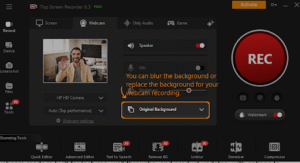
The webcam mode is built for lectures, walkthroughs, and product updates, with options to remove, blur, or replace the webcam background.
You can also adjust the webcam overlay by flipping, rotating, and changing the size, position, and shape to match a layout that looks right for presentations.
Audio recording, noise cleanup, and voice filters
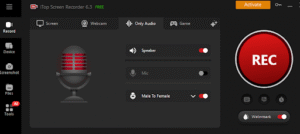
iTop Screen Recorder records both internal (system) audio and external (microphone) audio, which fits tutorials, meeting recaps, and narrated demos.
It includes an AI Voice Changer with voice filters, with examples shown on the official site like robotic, minions, young female, and more styles.
For cleaner sound, it includes a denoiser that removes background noise and microphone echo for clearer recordings.
Live annotation while recording
For software teams, the fastest way to explain a bug is often to mark it on screen while the recording runs. iTop Screen Recorder includes drawing and annotation tools such as text, shapes, and arrows.
It also includes a magnifier and spotlight tool to pull attention to a button, an error message, or a section of code.
An eraser tool is available so you can remove marks and redraw during a recording.
Editing: multi-track work without extra tools
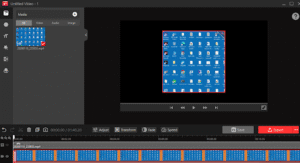
After recording, you can edit with multi-layer (multi-track) video and audio editing, including adding and adjusting multiple tracks.
Basic edits include trim, split, merge, resize, crop, flip, and rotate, which covers most “clean-up and publish” workflows.
You can also extract audio tracks from videos and remove tracks when the timeline gets busy.
To improve clarity, you can add texts, subtitles, stickers, and images so tutorials and onboarding clips stay readable.
Visual and audio effects are included too, such as filters, transitions, and special effects, plus adding music as background audio.
AI tools inside the same app
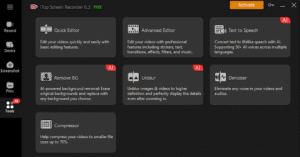
If you need voiceover but don’t want to record your own voice for every clip, AI Text to Speech can convert a script into lifelike speech, with 50+ voices across multiple languages.
For thumbnail prep or visuals inside training decks, AI Remove Background can remove image backgrounds and produce a transparent look for later editing.
For rough captures, AI Unblur supports fixing blurry images and videos to improve clarity and recover details.
How to record on Windows in minutes
Step 1: Download and install
Open iTop official download page and install the EXE on Windows:
The official steps are straightforward: install the downloaded file, open the app, then click the REC button to begin.
Step 2: Set up what you want to capture
Choose the recording mode that matches your task: full screen for a full demo, selected area for a bug region, window for a single app, or device recording for mobile mirroring.
Pick audio sources (system sound, microphone, or both) and add webcam if the video needs a narrator.
If you’re presenting, set the webcam background option (remove/blur/replace) and load your script into the auto-scroll teleprompter.
Step 3: Record (and mark it live)
Start recording and use the annotation toolbar to add arrows, text labels, shapes, magnifier, and spotlight while the action happens.
This is useful for “record screen Windows” tutorials, QA notes, and developer handoffs because the clip becomes self-explanatory.
Step 4: Save, edit, export
After you stop recording, trim the dead time, split mistakes, and merge sections into one clean take.
Add subtitles or on-screen labels so viewers can scan the content quickly, then export to the format your workflow prefers (MP4, MOV, MKV, WEBM, GIF, and more).
If file size is a concern, compress the finished output to a chosen target like 30%, 50%, or 70%.
Conclusion
Recording clear, high-quality videos is simple with iTop Screen Recorder. Effortlessly capture extended sessions in crisp visual and audio detail. Designed for everyone, it requires no technical skill—just set your preferences, hit record, and let the software handle the rest quietly in the background. You can keep working or simply relax while preserving exactly what matters.